Early access feature
This feature is currently available for early access. Contact your CSM for more information.
Write a formula that adds a new value to every row (a calculated field) or works on a report's totals (a calculated measure). Use them for numbers your data doesn't store, like days to close or win rate.
Before you begin
Your dataset must be set up. Refer to Build a dataset in Reporting (Beta).
Choose a calculated field or a calculated measure
Calculated field | Calculated measure | |
|---|---|---|
Works on | Each row, one at a time | The report's totals, after rows are added up |
Example | Days between created date and close date on each opportunity | Win rate: won amount divided by total amount |
Where you add it | On the dataset (Calculated fields (dataset-wide)) or in the report builder (Add calculated field) | In the report builder, on the Data tab under CALCULATED MEASURES |
Who can use it | Every report built on the dataset | The report you add it to |
A quick test: if the formula makes sense for a single record, it's a calculated field. If it only makes sense for a total, such as a ratio of two sums, it's a calculated measure.
Add a calculated field
Open the dataset and click a card to open its Configure panel, then click Add calculated field. In the report builder, click Add calculated field under ENTITIES & FIELDS instead.
Enter a Field name.
Choose the result type: number, currency ($), text, date, or true/false.
Write the formula. Put field names in square brackets, such as
[Amount]. Functions includeconcat,datediff,round,coalesce, andlookup.Click Add field. The button turns on once the formula is valid.
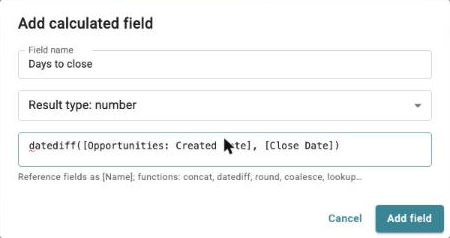
The new field appears under Calculated fields in ENTITIES & FIELDS, ready to add to a report like any other field.
When two record types share a field name
If more than one record type in the dataset has a field with the same name, the formula shows an error such as Several fields are named "Created Date". Add the record type in front of the field name to say which one you mean:
datediff([Opportunities: Created Date], [Close Date])
Add a calculated measure
In the report builder, add the measures your formula needs to METRICS first, such as Amount · sum.
On the Data tab, under CALCULATED MEASURES, click Add calculated measure.
Enter a Name, such as Win rate.
Write the Formula, referring to the report's measures in square brackets. For example:
[Won (sum)] / [Amount (sum)] * 100. Functions includeround,coalesce, andgreatest.Select The result is a money amount if the result is money. A difference, such as actual minus target, is money. A ratio, such as actual divided by target, isn't. Fullcast doesn't guess this from the formula.
Click Add measure.
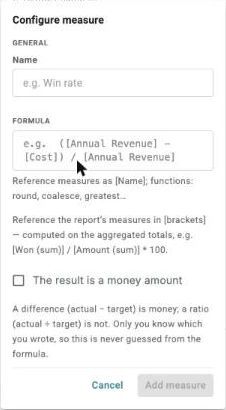
Calculated measures work on totals, so they add up correctly at every grouping level. A per-row formula belongs in a calculated field instead.